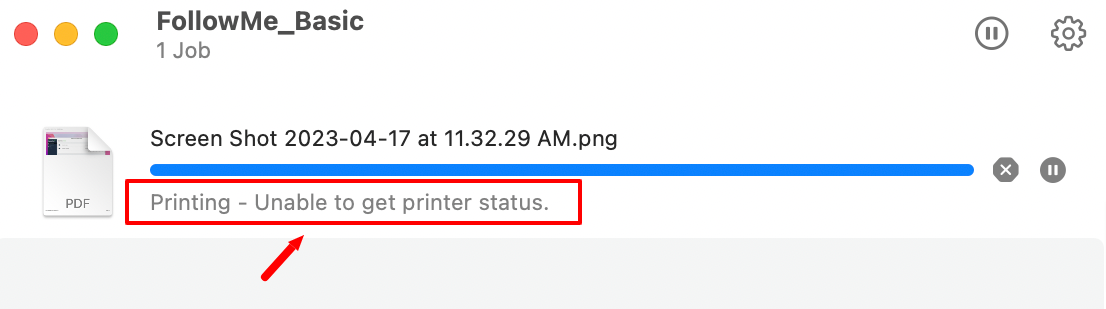
Thanks for reporting a printing problem. Here are a few basic troubleshooting steps that may help to resolve your issue.
Step 1: View My Printers & Sign In with Google
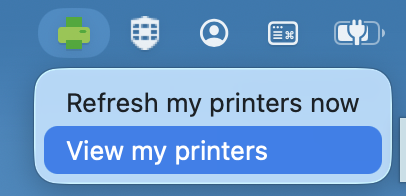
On a Mac, you should see a small printer icon in the top right corner of your screen. Click on this to view your available printers. If you do not see your printers listed, select Refresh my printers now from the same icon. If prompted, be sure to Sign in with Google using your @dcgschools.com account.
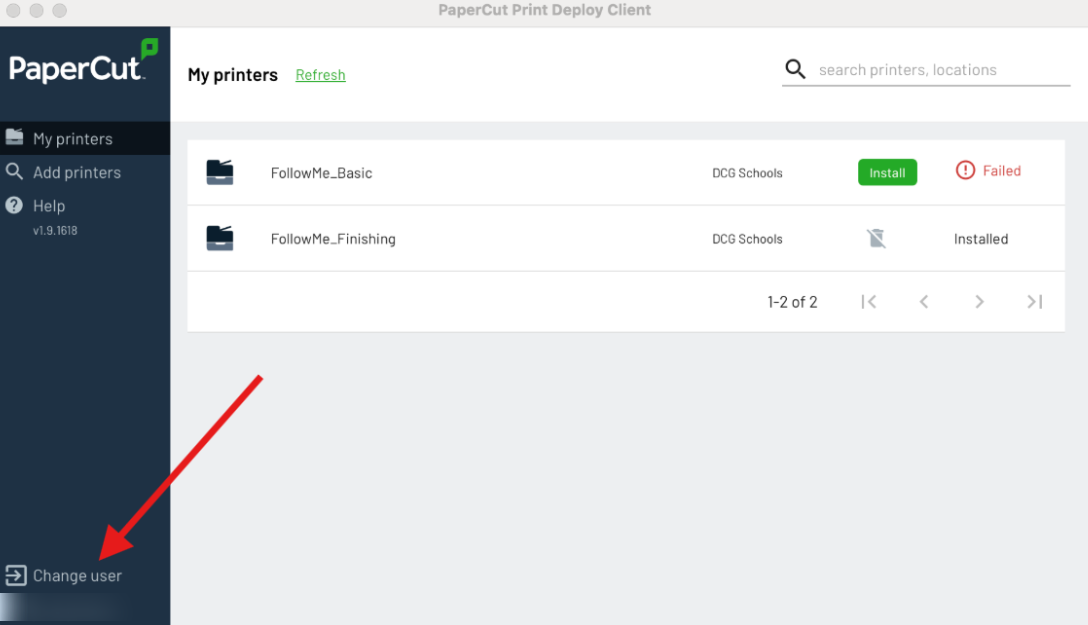
Step 2: Select Change User to Reauthenticate
If any of your computers say Failed, click on Change User to reauthenticate your PaperCut permissions with Google. This will force your available printers to reinstall with the correct user permissions.
Step 3: Restart
If you don't see the PaperCut icon at all, performing a full restart of your computer may help.
Step 4: Provide Additional Information (Error Message, Badge Number, and Problem Printer)
If you are still unable to print, look for a printer icon in your MacBook dock. It will likely show some type of error message. We will also need the 5-digit number on your keycard, and if you're having problems releasing jobs from a specific printer, the location of the problem printer. Please include this additional information in a reply to this email, and we will continue to troubleshoot the problem remotely.