
Staff OS X:
Users go to http://10.200.0.20:9191/print-deploy/client/macos
Open DMG file that is downloaded.
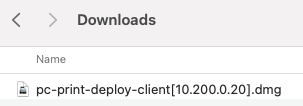
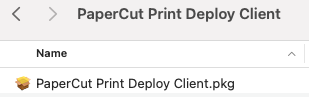
Run installer PKG from the window that opens. (User needs to be admin)
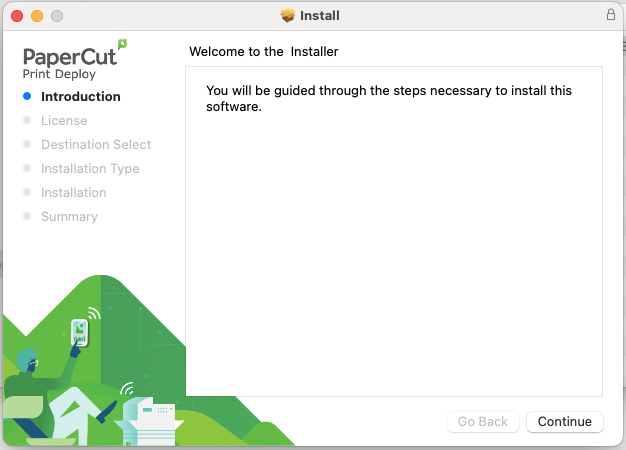
Click Continue on the first installer screen.
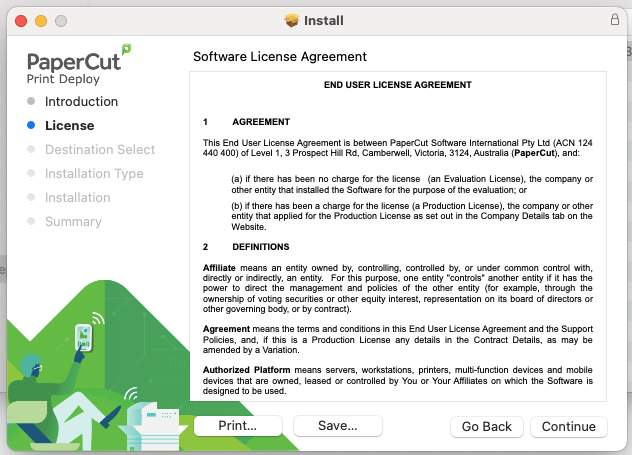
Click Continue then Agree on the next screen and pop-up.
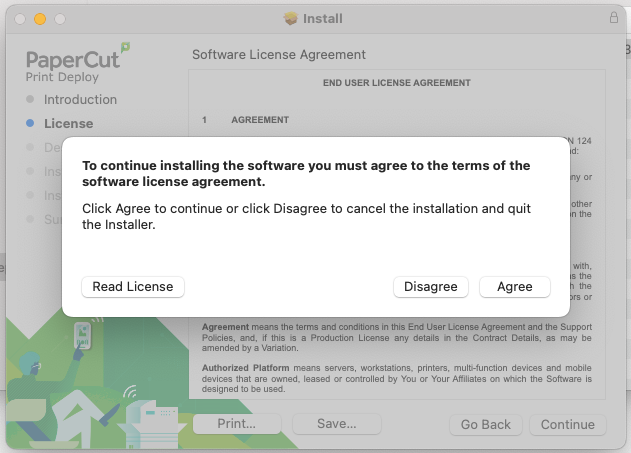
Click Install.
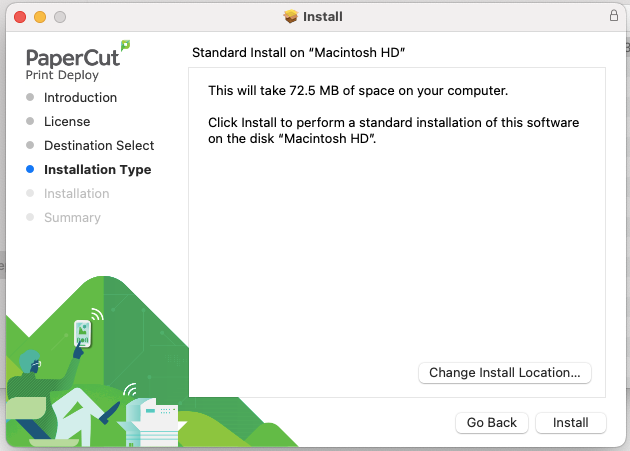
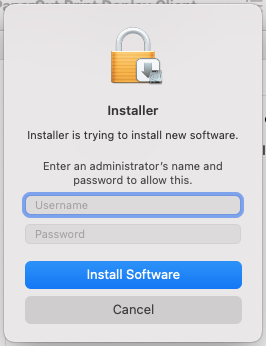
If you see the below prompt, enter your computer login, username and password.
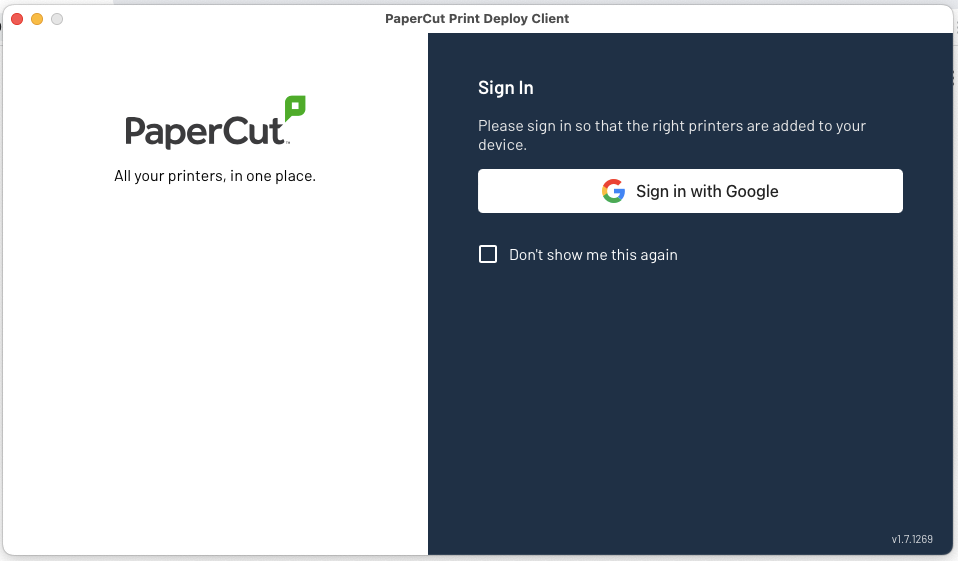
When the PaperCut sign-in pops up, check the box for “Don’t show me this again” and click Sign in with Google. A browser will launch and you will need to complete the login with your district Google login.
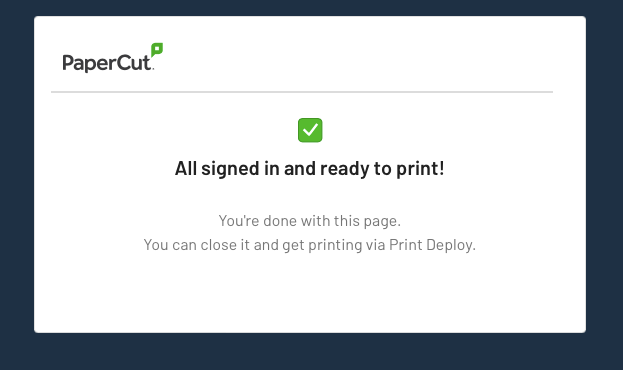
You should see the screen below in the web browser after you sign in. If you do not, please email helpdesk@dcgschools.com.
You should see the screen below come up showing what printers have been added to your computer.
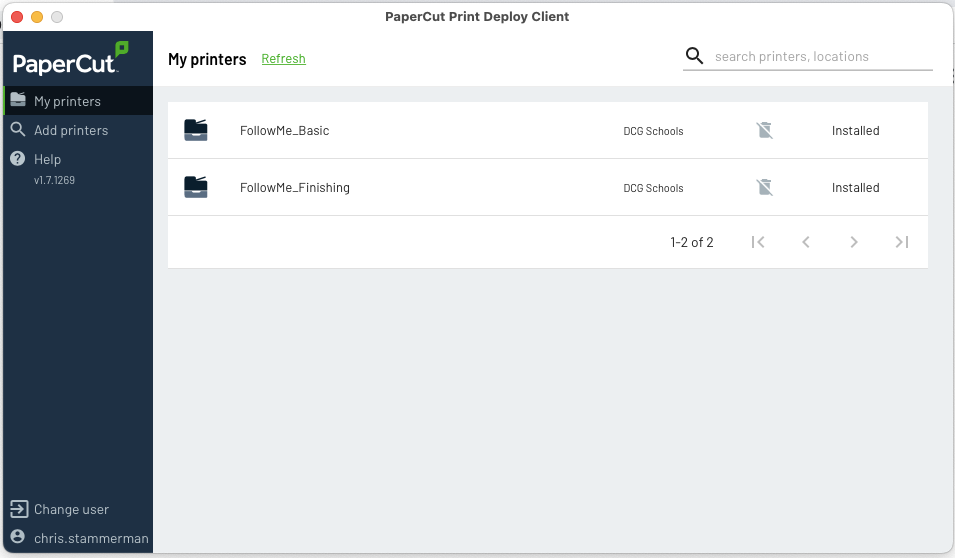
You should now print to these queues and use your badge to release print.